
Why Your App Icons Look Messy (And How a Blurred Wallpaper Fixes It)
We have all done it. You spend twenty minutes scrolling to find the absolute perfect 4K wallpaper. It is sharp, the colors look amazing, and you immediately hit “Set as Home Screen.” But the second you unlock your phone, it looks like a complete disaster.
Suddenly, your colorful app icons are fighting with the background. You cannot read the text under your apps, your widgets look out of place, and your screen just feels visually exhausting. If your home screen feels cluttered, it is probably not your apps—it is your wallpaper.
Here at 4k Mobile Wallpapers, we see this all the time. Today, I am going to show you a simple customization trick that fixes this messy look instantly while keeping your premium background intact.
The “Busy Background” Problem
High-quality 4K and 8K images have a lot of detail. When you take a highly detailed image (like a crowded cyberpunk city or a complex abstract design) and throw 20 brightly colored app icons on top of it, your eyes don’t know where to focus. There is zero contrast.
Apple and Android software try to help by adding a tiny drop shadow behind your app text, but against a bright or complex background, it just isn’t enough.
The Fix: The “Seamless Setup” Trend
Right now, the most popular way to set up a smartphone is using the “Seamless Setup.” It is incredibly simple but looks super professional. Here is how it works:
- For the Lock Screen: You use the original, ultra-sharp 4K image. This is where you show off the artwork in all its glory when you pick up your phone.
- For the Home Screen: You use the exact same image, but you apply a slight blur and dim the brightness just a little bit.
When you unlock your phone, the transition looks smooth. The background softens up, and your app icons suddenly pop off the screen. It makes finding your apps easier and gives your UI a massive aesthetic upgrade.
🛠️ How to Blur Your Wallpaper Without Losing Quality
You don’t need to download a heavy photo editing app just to blur a picture. We built a free tool directly on our site to do this in seconds.
Just upload your favorite image to our Blur & Dimmer Tool. You can adjust the exact amount of blur you want and slightly darken the image so your white app text stays totally readable. Hit download, and apply it to your home screen.
See the Difference
Look at the comparison below. It is the exact same background, but one is optimized for the home screen.
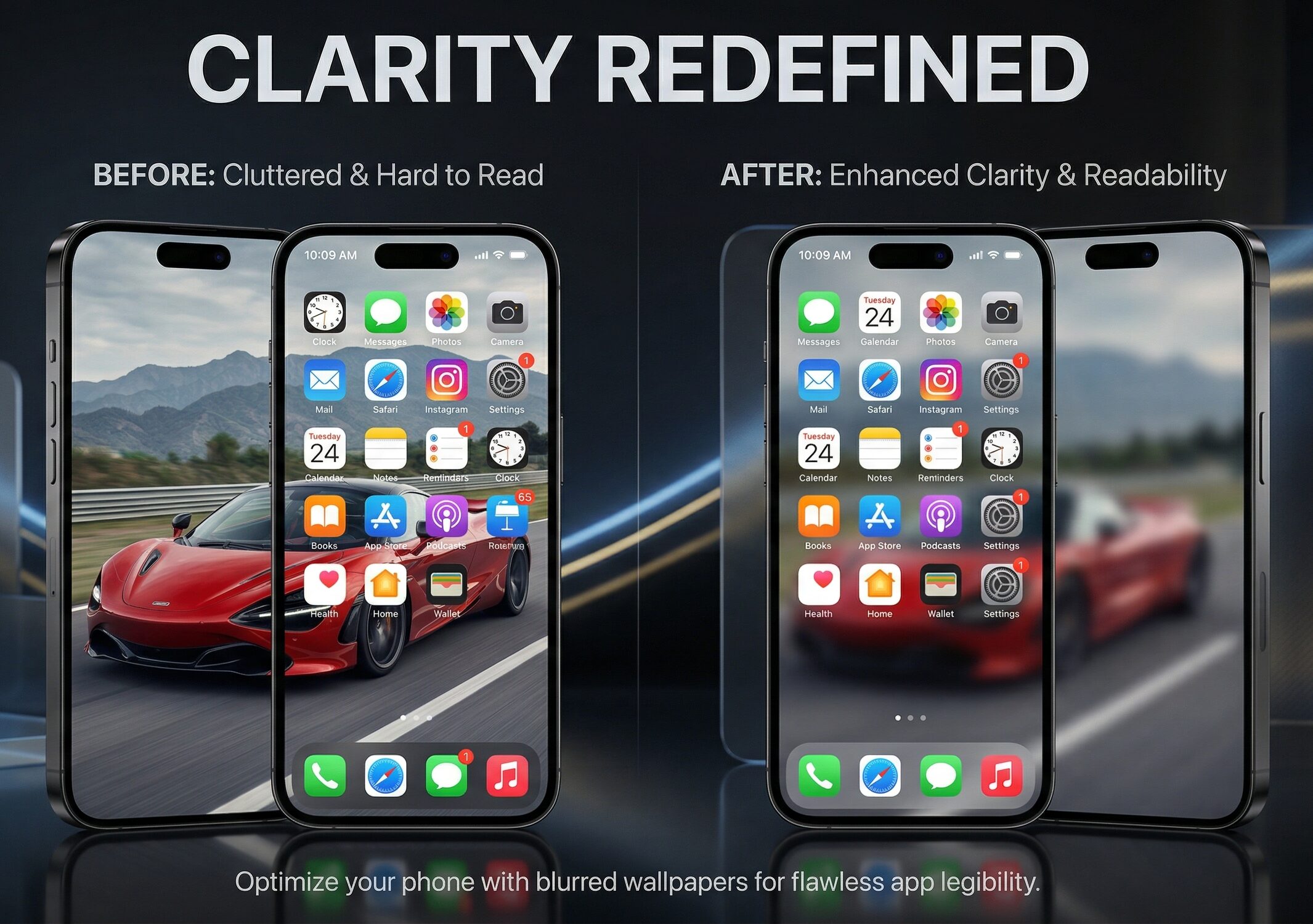
Notice how much easier it is to see the app icons on the blurred side. No more squinting to read your screen.
Frequently Asked Questions
Does blurring a wallpaper lower its 4K resolution?
Not if you use the right tool. Built-in phone editors sometimes compress the image when you edit it. Our web tool keeps the original 4K resolution intact; it simply applies a visual frosted glass effect over the pixels.
What if the image doesn’t fit my screen correctly?
If the subject of your wallpaper is sitting behind your bottom app dock, you need to reframe it. Before you blur it, run the image through our Wallpaper Cropper to get it perfectly centered for your specific phone size.
Should I dim the wallpaper too?
Yes, especially if you use Light Mode for your app icons. Dropping the brightness by just 10% or 15% using the dimmer slider creates enough contrast to make everything readable without making the wallpaper look muddy.
Ready to clean up your home screen? Grab a fresh 4K background from our collection and give the Blur tool a try.